
OSCAR Alerts from OSCAR at Home
OSCAR is a home wellness device for older adults. With the resident's permission, OSCAR can send a text message to a family member or friend the resident has named — for example, asking them to check on the resident. Nobody receives these texts unless they sign up themselves, on their own phone, and confirm their number.
The sign-up form opens inside the resident's home: OSCAR's screen shows a QR code labeled “Family of [resident]: scan to get OSCAR's texts,” which opens the form on the family member's phone over the home Wi-Fi.
See the live form: oscarathome.com/family-join
A public copy of the form family members see, with the same fields, consent box and wording, open to anyone with no login. It works the same way, but it sends no texts and saves nothing.
Every way a person opts in
There is one opt-in path, and it always goes through these steps:
- The resident agrees, out loud at OSCAR, to let family be told, or the person who set up OSCAR turns on the family code for that resident. OSCAR's screen then shows a QR code labeled “Family of [resident]: scan to get OSCAR's texts” for 15 minutes. The link in the code stops working after 30 minutes.
- The family member scans the QR code with their own phone's camera. The sign-up form opens in their phone's web browser. It is the form at oscarathome.com/family-join.
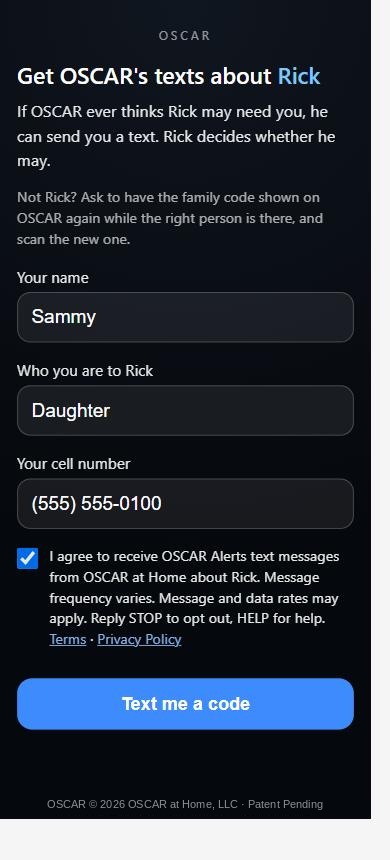
- They type their name, relationship and mobile number, and tick the consent box. The box starts unticked and is required, both on the page and by OSCAR itself. The disclosure next to it reads exactly as shown in step 1 below, with links to the Terms and Privacy Policy.
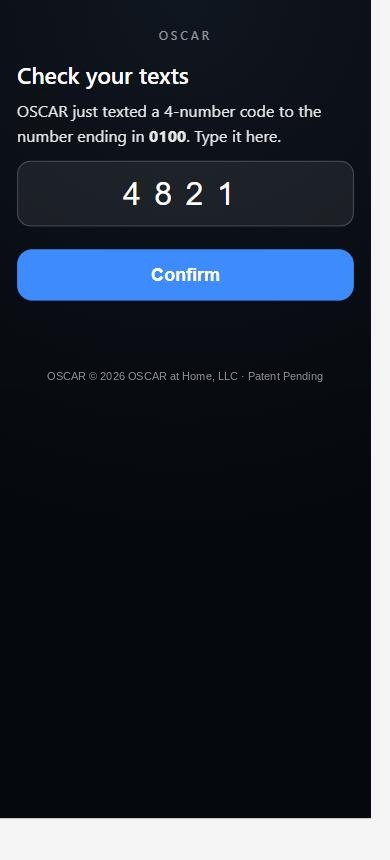
- They tap “Text me a code.” OSCAR texts a one-time verification code to that number. The code works once, expires after 10 minutes and allows 5 tries.
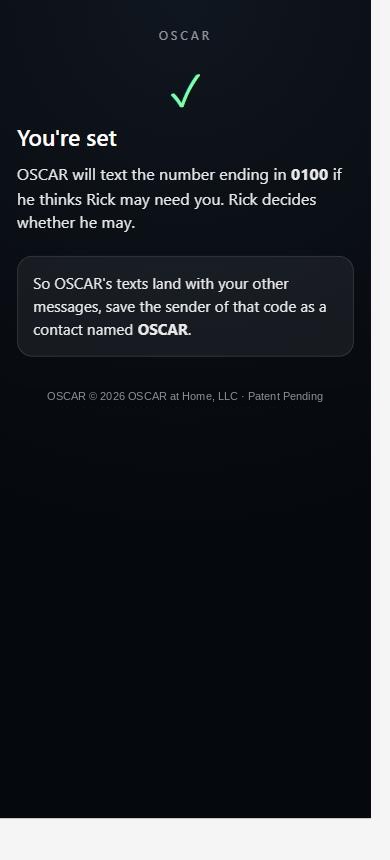
- They type the code into the form. Only then is the number saved for OSCAR Alerts. Without the code, nothing is saved and no alerts are sent.
- They can stop at any time by replying STOP to any message. HELP returns help and contact information.
Numbers are never bought, imported or added by anyone other than the person who owns the phone. No one is opted in by phone call or paper form. The keywords START, YES and UNSTOP only turn texts back on for someone who already signed up through the form and later replied STOP. These are pictures of exactly what family members see:
1. The family member enters their details and agrees
They type their name, relationship and mobile number, and must tick the consent box. The box starts unticked, and no text is sent without it.
2. OSCAR texts a one-time code to confirm the number
“OSCAR at Home: Your verification code is 4821. Enter it on the sign-up page to receive OSCAR Alerts. Do not share this code. Reply STOP to opt out.” The person types the code to prove the number is theirs.
3. Confirmed
Only after the code is confirmed is the number saved. The page says so plainly.
What the messages say
Safety and wellbeing alerts about the resident, never health readings or anything the resident said. Example: “OSCAR at Home: Rick may need you right now. Please call or check on Rick. If you can't reach Rick and you're worried, call 911. Reply STOP to opt out.”
Message frequency varies and is usually rare. Message and data rates may apply. Reply STOP to any message to stop, HELP for help. We do not sell or share your SMS opt-in data or personal information with third parties for marketing purposes. See our Terms of Service and Privacy Policy.